Key Features You’ll Love
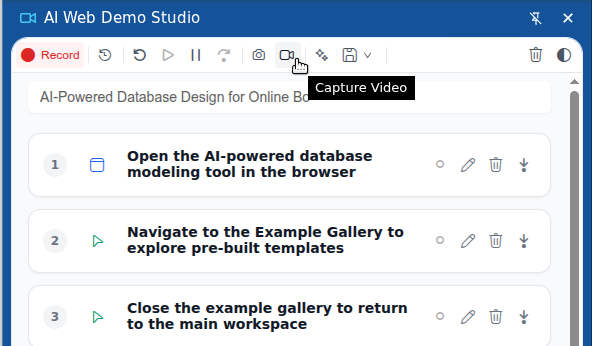
- No More Retakes: Edit your flow like a document, not a video. Clicked wrong? Just delete the action.
- Record Once, Replay Anywhere: Your recorded sessions are not tied to a specific screen size. Replay them flawlessly in different browser dimensions.
- AI-Powered Captions: Save time with automatically generated, human-readable descriptions for every step.
Follow these steps to create, edit, and enhance your first interactive demo.
Start Recording:
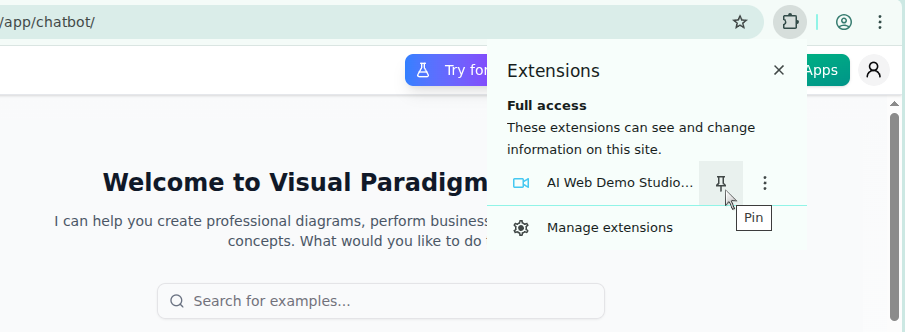
- Click the extension icon in your browser toolbar to open the recorder.
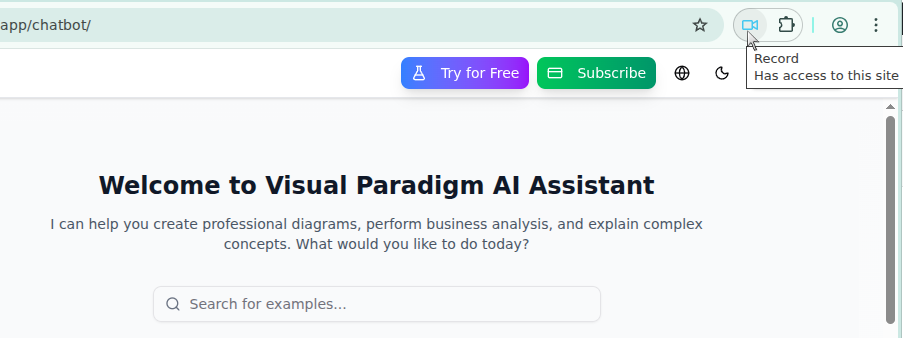
- Press the Record button to begin capturing your actions. The recorder will track your clicks, scrolls, and text inputs across tabs.
Enhance in Real-Time with the Floating Toolbar:
As you record, press `Alt+Shift+F` to toggle the Floating Toolbar.
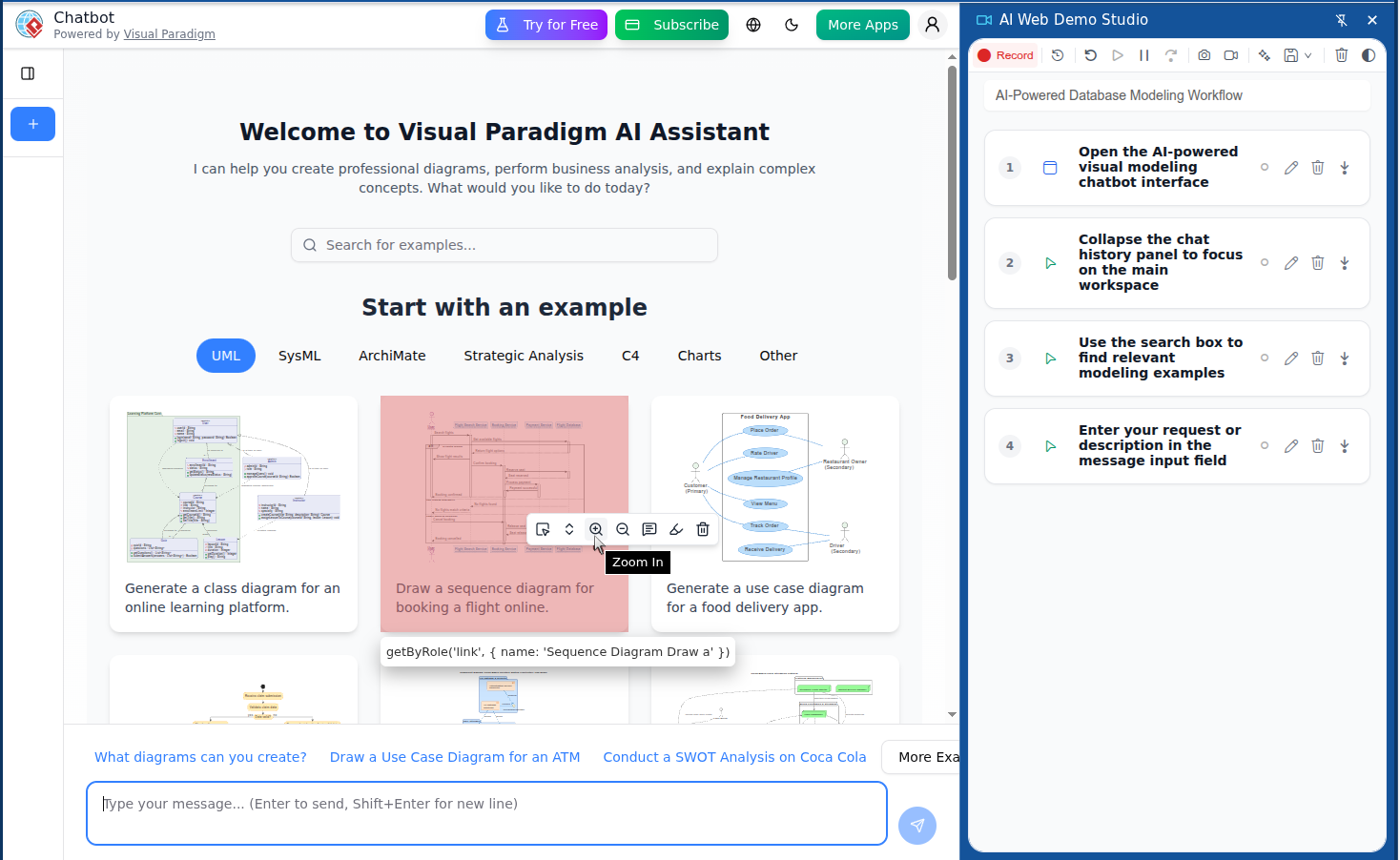
Use the tools to guide your audience’s focus:
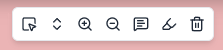
- Hover: Simulate a mouse pointer hovering over an element.
- Scroll To: Automatically scroll to a specific element on the page.
- Zoom In: Magnify specific parts of the screen.
- Zoom Out: Return the view to its normal, un-magnified state.
- Annotate: Add explanatory text directly on the page.
- Highlight: Add visual emphasis to elements.
- Clean Annotation / Highlight
Review and AI Polish:
When you’ve completed your workflow, stop the recording.
Our AI assistant can automatically generate a title for your demo and create clear, human-readable captions for each step you performed.
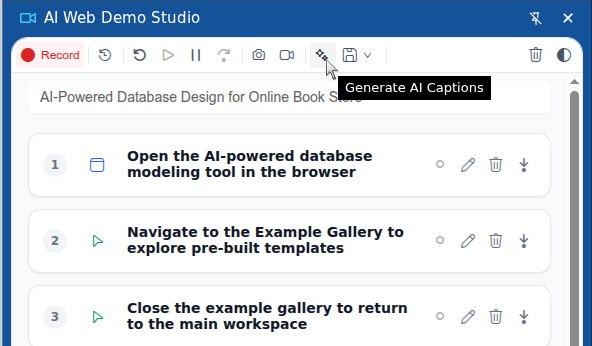
Edit with Precision:
- Review the sequence of actions in the recorder.
- If you made a mistake or want to change something, you don’t need to start over. Simply select any action to edit its details or delete it entirely.
Save Your Work:
Once you are satisfied with your edits, save the session.
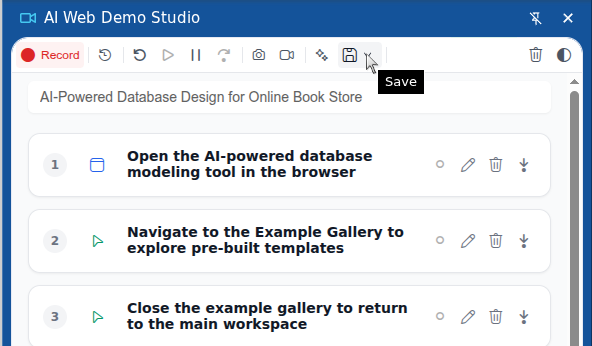
Export to Video:
After saving, you can export your interactive demo as a traditional video file (WebM) to share across any platform.