
What Can the Notebook Do?
Right now, the Notebook is in a “preview” stage, which means we are still adding new things to it. Currently, you can:
-
See Everything at Once: View every note made by your current group in one long list (with the newest notes at the top).
-
Focus on One Person: Filter the list to see only the notes written by a specific user.
-
Interact: You can reply to others or edit your own notes directly from the Notebook.
-
Browse Easily: Use the “Next” and “Previous” buttons to flip through pages of notes.
Coming Soon: We are working on adding a search bar for keywords, the ability to sort notes by specific documents, and a way to export your notes to a file.
How to Open the Notebook
Getting to the Notebook takes just a few clicks:
-
Open Annotator: Go to your assignment or any page where you use Annotator.
-
Open the Sidebar: Click the small arrow to slide out the side menu.
-
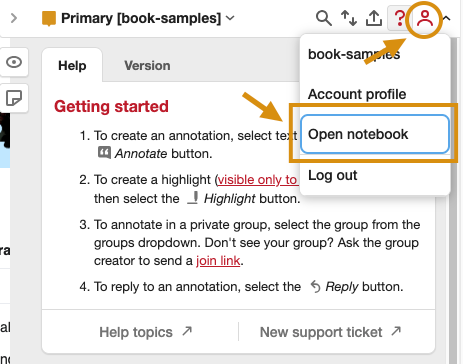
Find Your Menu: Click on the User Icon (the little person symbol) at the top of the sidebar.
-
Select “Open Notebook”: A new window will pop up showing all the notes for your group.