
When you’re working on a reading, you might not be ready to share your thoughts with the whole class or team right away. Annotator lets you save “drafts” that only you can see. You can perfect them later before making them public to the group.
How to Save a Private Draft
To save a note that is hidden from everyone but you, follow these steps:
-
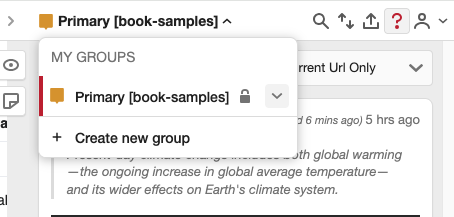
Choose Your Group: At the top of the Annotator sidebar, click the Groups menu to pick the specific group you are working with.
-
Highlight and Write: Select the text on the page and click Annotate. Type your notes into the box.
-
Set to “Only Me”: Look for the small arrow next to the Post button. Click it and select Only Me. The button will now say Post to Only Me.
-
Save It: Click that button. Your note is now saved, but it’s a secret!
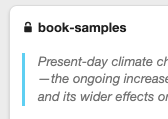
How can I tell it’s a draft? You will see a small padlock icon next to your name on the note. This is your signal that nobody else can see this note yet.
Sharing Your Draft with the Group
When you’ve polished your note and are ready for others to read it, follow these steps to “publish” it:
-
Edit Your Note: Find your draft in the sidebar and click the Pencil (Edit) icon at the bottom.
-
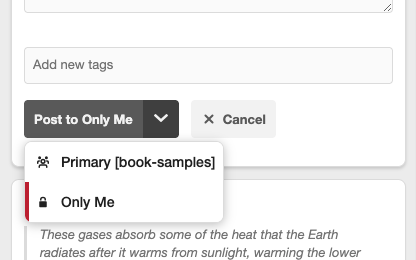
Change the Privacy: Click the arrow next to the Post to Only Me button. This time, select the Group Name from the list. The button will change to say Post to [Group Name].
-
Post It: Click the button. Your note is now live for everyone in the group to see!
How do I know it’s shared? The padlock icon will disappear. This means the note is now “unlocked” and visible to your group members.