



This simple guide is designed for everyone, especially if you’re new to making sure digital content is accessible. If you’ve used the Annotator tool to highlight an image, this guide will show you how to write great Alt Text (Alternative Text) so that everyone can understand your work, including people who are visually impaired or use screen-reading tools.
Follow these easy, non-technical steps to create more inclusive annotations.
What is Alt Text, Really?
Alt Text is short for “Alternative Text.” Think of it as a brief, factual description of an image—like a hidden caption that only appears when a user needs it. When you use the Annotator tool to mark an image, adding Alt Text is a quick way to describe what you’ve selected.
Why is it important?
-
For Screen Readers: People who are blind or have low vision use special software called a “screen reader.” This software can’t “see” a picture, but it can read your Alt Text out loud, telling the user exactly what the image is about.
-
For Search and Data: When you search through your annotations later, or export your notes for your records, the Alt Text helps you (and others) quickly find and understand which part of the image you were talking about.
-
When Images Don’t Load: If a picture breaks or fails to load due to a slow connection or a technical error, the Alt Text appears instead, ensuring the user still gets the key information.
Alt Text is Different from Your Annotation Note
This is the most common point of confusion. Remember that Alt Text and your Annotation Text have completely different jobs.
| Feature | Alt Text (Alternative Text) | Annotation Text (Your Note) |
| Purpose | To describe the image factually. | To comment, interpret, or ask about the image. |
| Question It Answers | “What is this picture/selection?” | “What do I think about this picture/selection?” |
| Example | “A close-up photo of a red arrow pointing to the number ’42’ on a ledger.” | “This number ’42’ is the key data point that contradicts the thesis in the previous paragraph.” |
Rule of Thumb: Alt Text is the description; your annotation is the commentary.
Simple Steps for Writing Excellent Alt Text
Your goal is to be concise, clear, and accurate. The Annotator tool supports descriptive text up to 250 characters (about 1-2 short, strong sentences).
-
Be Specific to Your Selection: The Annotator lets you select a small part of a larger image. Your Alt Text should only describe the area you’ve highlighted, not the whole picture. Focus your description tightly on what you’ve marked.
-
Focus on Key Elements: Ask yourself: What is the most important part of this selection that a user must know? Is it a label, a number, a color, or an action? Focus on these crucial pieces of information and ignore tiny, decorative details.
-
Use Simple, Direct Language: Write as if you are talking to someone over the phone who cannot see the picture. Start with “A photo of…”, “An illustration showing…”, or “A diagram of…” Avoid jargon or complex vocabulary.
-
Keep it Brief and Factual: Aim for one strong, descriptive sentence. Alt Text is meant to be a quick replacement for the visual information.
Examples of Good Alt Text:
Example 1:

A smiling brown dog sitting by a lake in the afternoon sun.
Example 2:
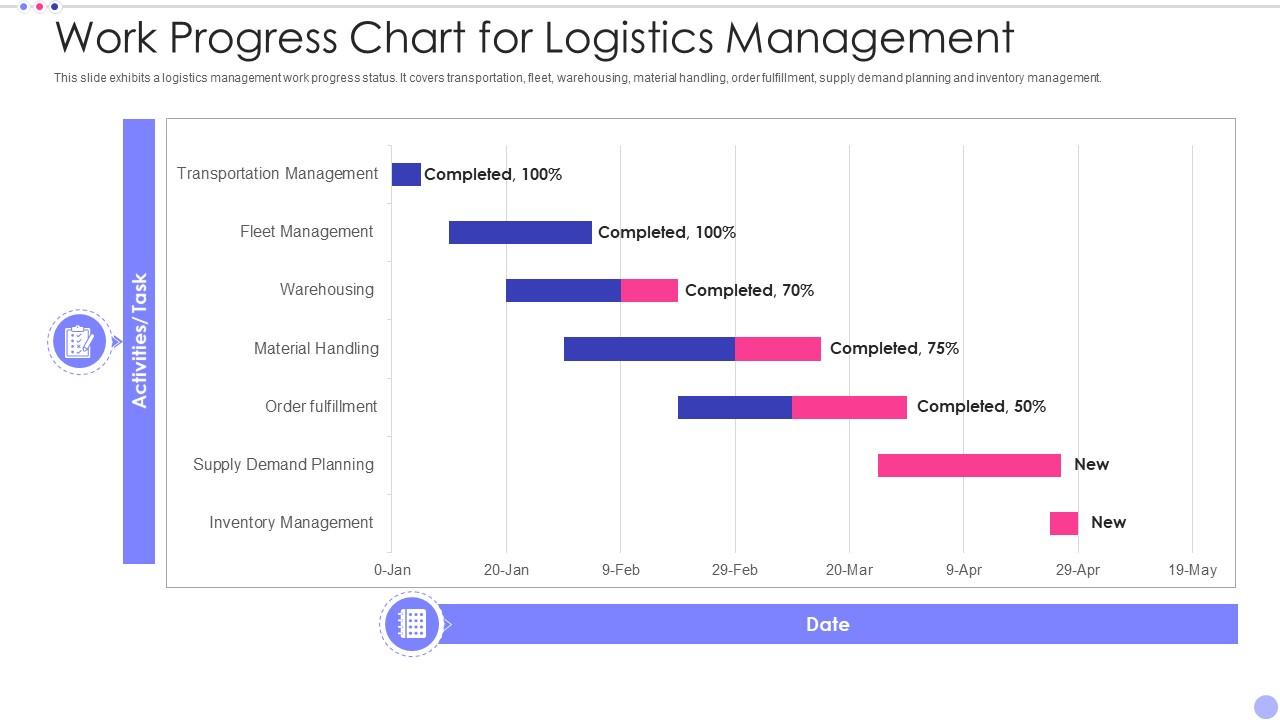
Gantt chart showing logistics progress: Transportation/Fleet 100% done; Warehousing/Material Handling 70%+ complete.
| Image Description | Good Alt Text |
| A domesticated cat with gray fur, white paws, and bright green eyes. | “A domesticated cat with gray fur, white paws, and bright green eyes.” |
| An illustration showing the boundaries between two countries, including major cities. | “An illustration showing the boundaries between two countries, including major cities.” |
| A line graph showing a steady increase in temperature readings over a three-week period. | “Line graph showing a temperature increase from 60 to 85 degrees Fahrenheit over 21 days.” |