



Welcome! This guide will show non-technical users how to use Annotator to highlight and comment on PDF files that you have saved directly on your desktop or laptop computer. This process is perfect for studying, collaborating with a group, or making private notes on your documents.
Why This Works (Understanding the “Fingerprint”)
Annotator is clever! When you open a PDF, it creates a unique digital signature (we call this a “fingerprint”). This means if you share the exact same PDF file with a classmate or colleague, they will see your annotations, and you will see theirs, even though you both have separate copies of the file saved on your own computers.
What You Need to Get Started
To make notes on a local PDF, you must be using a regular desktop or laptop computer. This feature does not currently work on mobile phones or tablets.
You must also be using one of the following setups:
-
Google Chrome browser: With the Annotator extension installed.
-
Mozilla Firefox browser: With the Annotator bookmarklet installed.
(If you are using Firefox, you can skip Step 2 below.)
Accessing and Viewing This Guide
This help guide is a simple webpage. You can keep it open in a separate browser tab while you follow the steps. If you want to save it for later, you have a few easy options:
-
Bookmark it: Click the star icon (or press
Ctrl+Don Windows/Linux orCmd+Don Mac) in your browser’s address bar to save this page to your bookmarks. -
Save as PDF: You can save a digital copy of this guide to your computer. In your browser’s menu (usually three vertical dots or three horizontal lines), select “Print,” and then change the destination printer to “Save as PDF.”
The Step-by-Step Guide
Step 1: Check if Your PDF is Ready (Selectable Text)
Why this is necessary: For Annotator to work, the text in your PDF needs to be “live,” meaning you can click and drag your mouse to select words. If your PDF was created by scanning a printed book or paper, it might just be an image, and you won’t be able to select the text.
-
How to check: Open your PDF. Try to click and drag to highlight a sentence.
-
If you can select the text: Great! Move on to Step 2.
-
If you can’t select the text (it acts like a picture): You will need to process the PDF first using a tool called Optical Character Recognition (OCR). This software analyzes the images and converts them into selectable text. You can often find free online tools by searching for “free online OCR for PDF.” Once you run your file through OCR, save the new version and come back to this guide.
-
Step 2: Adjusting Settings in Chrome (Chrome Users Only – Skip for Firefox)
This step is a one-time setup to give the Annotator extension permission to work on files saved on your own computer.
-
Note: You only have to do this once per Chrome profile. If you sign into Chrome on a new computer, your settings should follow you!
a. Find the Extension: Look for the Annotator icon (it might look like a puzzle piece or a small “A”) in the top right corner of your Chrome browser window.
b. Open the Options: Right-click on the Annotator icon and select “Options” from the little menu that appears.
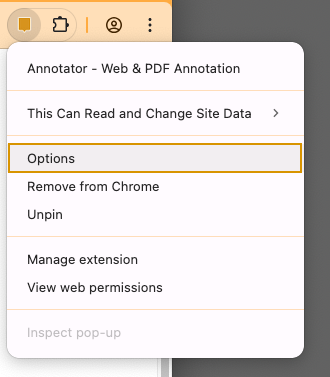
Annotator Extension Chrome Options
c. Dismiss the Intro Screen: A small pop-up window may appear asking you to log in or get started. You can click the button to Dismiss or Close this window.
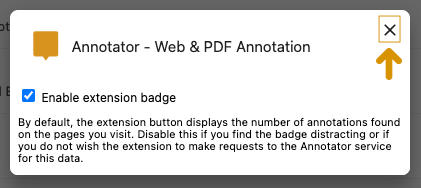
Annotator Extension Close Options
d. Change Two Settings: On the Annotator Options page, look for and adjust these two settings:
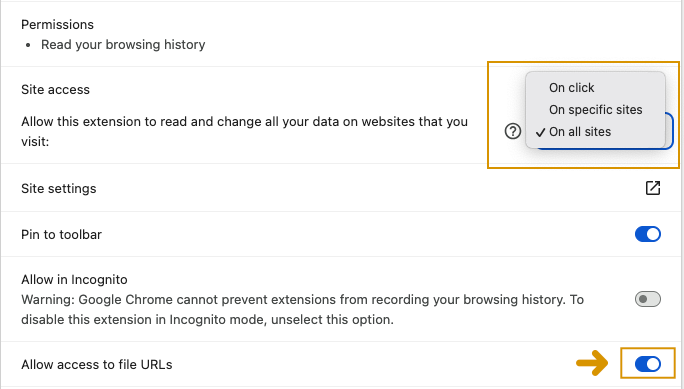
Annotator Extension Access Options
* Site Access: Make sure this is set to “On all sites.”
* Allow access to file URLs: Flip the switch next to this setting to the ON position (it should turn blue or green).
Step 3: Open Your PDF in the Browser and Activate Annotator
Now that your file and settings are ready, you can open the PDF document you want to annotate.
a. Open the File:
* Click on the main menu of your browser (File then Open File…).
* Alternatively, you can use the keyboard shortcut: Press Ctrl + O on a PC, or Cmd + O on a Mac.
* Find the PDF on your computer and open it. It should appear inside your browser window, just like a regular webpage.
b. Activate the Tool:
* If you are using Chrome: Click on the Annotator extension icon (the puzzle piece/icon) in the top right corner of your browser.
* If you are using Firefox: Click on the Annotator bookmarklet that you saved to your bookmarks bar.
The Annotator sidebar should appear on the right side of your document, confirming you are ready to start reading and commenting!
Step 4: Annotate and Share! (Collaborating with others)
Now you can start highlighting and making notes just like you would on any online document.
How sharing works:
-
You: Make annotations on your local PDF.
-
You Share: Email the actual PDF file to a friend or upload it to a cloud drive (like Google Drive or Dropbox). You must send them the file itself, not just a link to the file on your computer.
-
Your Friend: Downloads the file, opens it in their browser, and activates their own Annotator extension/bookmarklet (after following the setup steps, especially Step 2 for Chrome users).
-
The Result: Because your friend’s copy of the PDF has the exact same “fingerprint,” Annotator automatically displays all the annotations you made, allowing you to see and respond to each other’s comments instantly!
Sharing Instructions to Provide to Others (Example):
When you share the PDF file with someone, we recommend including these simple instructions:
-
Set up Annotator: Create a free account and install the Chrome extension or Firefox bookmarklet.
-
Adjust Chrome (if necessary): If you use Chrome, follow Step 2 in this guide to make sure the extension can read local files.
-
Open and Go: Download the PDF I sent you. Open the file in your Chrome or Firefox browser, and then click the Annotator icon/bookmarklet to start annotating.