



You don’t need to be a programmer to make your comments and highlights look neat and organized. We use something called Markdown, which is just a simple way to use characters you already type—like stars (*) and hash symbols (#)—to quickly format your text. This cheat sheet shows you how to use these simple characters in the Annotator editor.
Formatting Cheat Sheet
| What you want to do (Style) | How to type it (Syntax) | A simple example to try | What it looks like (Result) | Why you’d use it |
| Bolding Text | **text** or __text__ |
We need to talk about **this key point**. |
We need to talk about this key point. | To make important phrases or words really stand out for the reader. |
| Italicizing Text | *text* or _text_ |
This idea is a bit *controversial* and needs more thought. |
This idea is a bit controversial and needs more thought. | For titles, emphasis on a softer term, or foreign words. |
| ~~Crossing Out Text~~ | ~~text~~ |
~~This statistic is old~~ The new one is better. |
~~This statistic is old~~ The new one is better. | To show you’re deleting or retracting a thought without fully erasing it. |
| Headings (Titles) |
|
|
Main Idea (Largest)
Sub-Section (Smaller)
Detail (Smallest) |
To organize a very long annotation into different topics or chapters. |
| Quoting Someone Else | > quoted text |
|
My professor said:
> Always cite your sources. |
To clearly separate a direct quotation from your own thoughts. |
| Numbered List |
|
|
Steps:
1. Find the main claim
2. Look for evidence |
When the order of items matters, like a set of instructions, a timeline, or an ordered set of arguments. |
| Bullet Points | - First Item (Use a hyphen -) |
|
Groceries:
– Apples
– Bananas |
For simple lists where the order doesn’t matter. |
| A Separating Line | --- (Three hyphens on their own line) |
|
End of my first thought.
(A horizontal line appears here)
Starting a new thought here. |
To visually divide two different sections or topics within your annotation. |
Technical Term |
`text` |
This feature uses a method called \JSON`.` |
This feature uses a method calledJSON\. |
To talk about a specific technical term or software code (most non-technical users won’t need this). |
How to See Your Formatting (The Preview)
You don’t have to wait until you save your annotation to see if your formatting worked!
-
While you are writing (in the Write view), you will see the simple Markdown characters (like
**and#). -
To check your work, click the “Preview” button in the Annotator editor toolbar. This switches you instantly to the Preview view, showing you exactly how your bold text, lists, and headings will look to others.
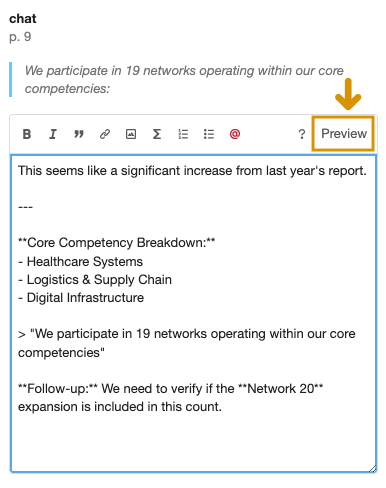
Click Preview to see your Annotation
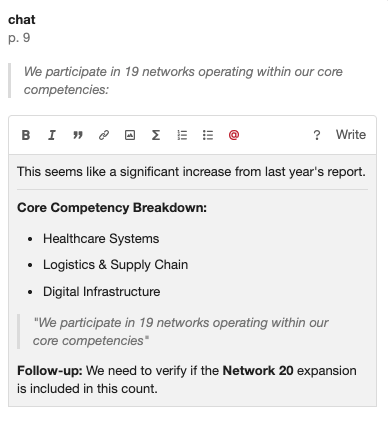
Preview Of Your Annotation
-
To make changes, just click the “Write” button again to return to your editing.
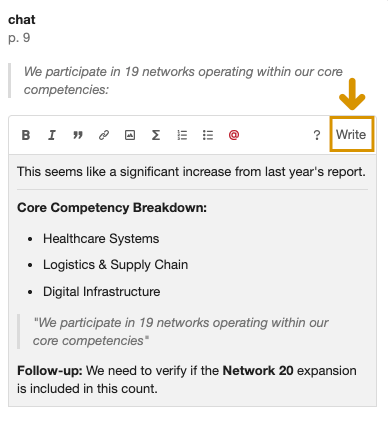
Continue Writing Your Annotation
This back-and-forth lets you quickly adjust any formatting errors before you post!
Troubleshooting (When Formatting Doesn’t Look Right)
Sometimes your formatting might not show up the way you expect. Here are the most common quick fixes:
-
Pasting from Word or Google Docs: If you copy text from another program (like Microsoft Word or a web page), it often brings hidden formatting with it that Markdown doesn’t understand. To fix this, use the “Paste and Match Style” command, which only pastes the plain text:
-
On Mac:
Option+Shift+Command+V -
On PC/Windows:
Ctrl+Shift+V
-
-
The Separating Line (
---) isn’t appearing: Make sure there is a completely empty line before and after the line with the three hyphens (---). -
Lists or paragraphs are running together: If you’re having trouble creating a new line or paragraph, try pressing
EnterorReturntwice instead of just once to force a visible line break.
If you are completely stuck, feel free to [Create a Support Ticket] to get help from the Annotator team!