



How to Remove Annotations
If you need to remove an entry, Annotator provides two simple ways to delete your content: directly from the sidebar or via your personal account dashboard.
Method 1: Using the Annotator Sidebar
While you are viewing a page or document with the Annotator extension active:
-
- Open the sidebar and ensure you are logged into your account.
- Locate the specific annotation card you wish to remove.
- Click the trash can icon located at the bottom of the card.

Visual Paradigm Annotator – Delete an annotation
-
- A confirmation prompt will appear. Click “OK” to permanently delete the annotation.
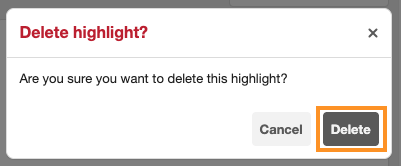
Visual Paradigm Annotator – Deletion confirmation
Method 2: Deleting via Your Profile Page
If the original website or document is no longer accessible, you can still manage your data from your Annotator profile:
-
- Navigate to your Profile Page and locate the annotation in your activity feed.
- Click on the timestamp (found in the top-right corner of the annotation card).
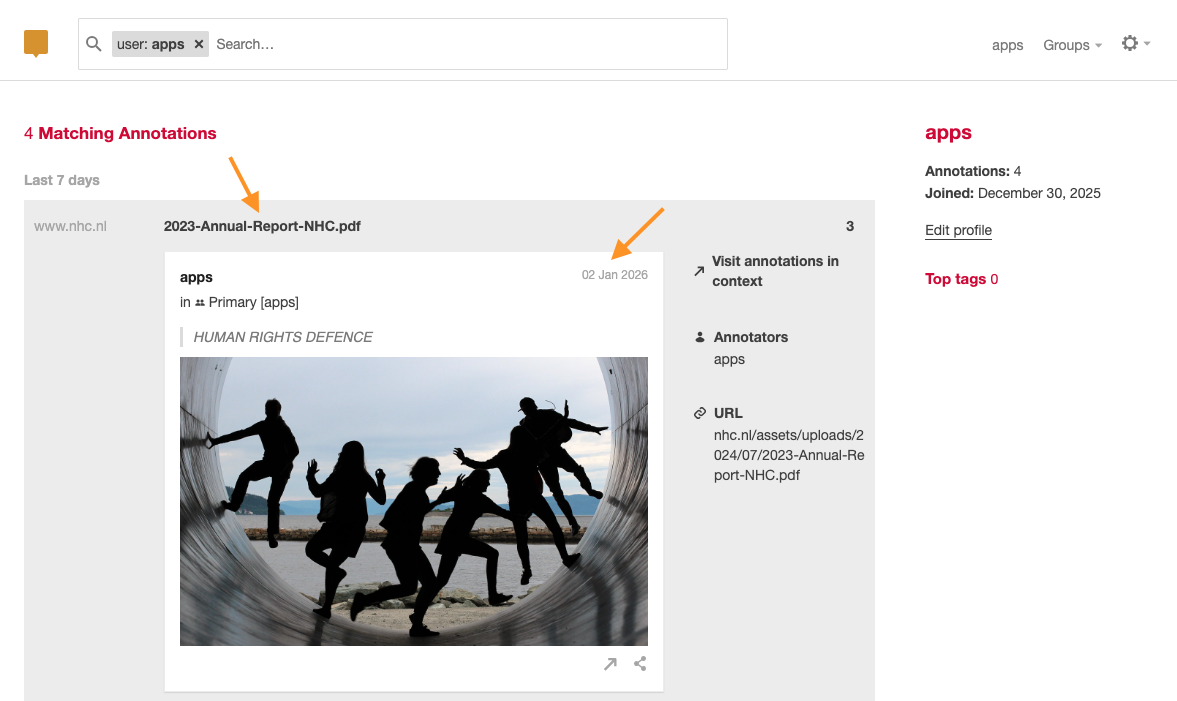
Visual Paradigm Annotator – Delete annotation from Profile
-
- This opens a dedicated page for that specific annotation. Here, you will see options to edit, share, or reply.
- Click the trash can icon to remove it.
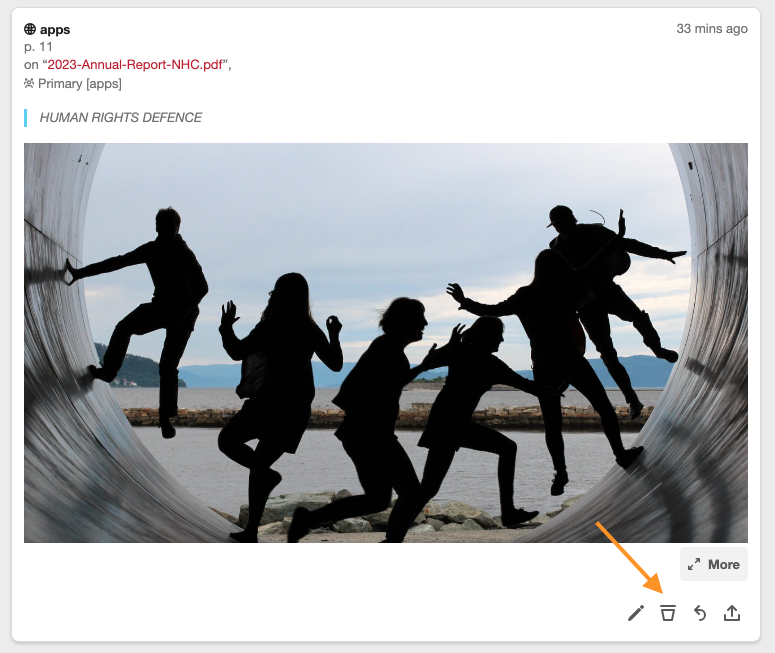
Visual Paradigm Annotator – Click the Trash button
If the trash can icon isn’t appearing on your standalone annotation page, simply activate the Annotator extension on any other tab to ensure you are logged in, then refresh the page.