



Enriching Your Annotations: How to Embed Links and Media
The Annotator sidebar does more than just capture text; it allows you to create rich, interactive notes by embedding external links, images, and even GIFs.
Take your notes further by exploring our advanced guides on Markdown Basics, Inserting Videos, and Advanced Math with LaTeX to create truly professional annotations.
🔗 Creating Hyperlinks
To direct readers to external resources or citations within your annotation:
-
- Copy the URL you want to share.
- Highlight the specific text in the Annotator editor that you want to turn into a link.

Visual Paradigm Annotator – Adding links
-
- Click the Link icon in the toolbar.
- The editor will automatically wrap your text in brackets and add a placeholder URL in parentheses:
[your text](http://insert-your-link-here.com).

Visual Paradigm Annotator – Custom links
-
- Paste your URL over the placeholder text inside the parentheses. Ensure you do not delete the
()symbols. - Save your note. Your link will now appear as a clickable, underlined highlight.
- Paste your URL over the placeholder text inside the parentheses. Ensure you do not delete the

Visual Paradigm Annotator – Link Highlighted
🖼️ Embedding Images and GIFs
Annotator supports images that are already hosted online. If your image is currently saved on your computer, please upload it to a hosting service (like Imgur or Cloudinary) first to generate a web link.
To add an image or an animated GIF:
-
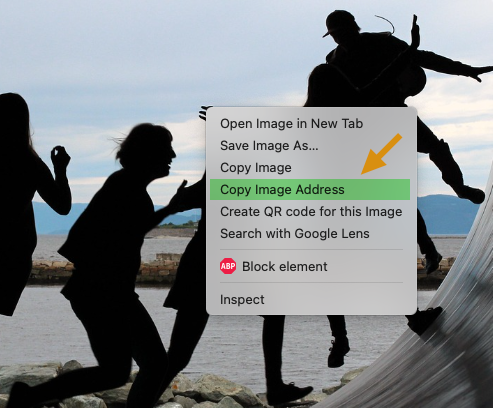
- Get the Image Address: Find the image online, right-click it, and select “Copy Image Address” (or “Copy Image Link”).
-
- Use the Image Tool: In the Annotator editor, click the Image icon. This generates a snippet of code that looks like this:
 - Insert the Link: Replace the placeholder URL inside the parentheses with the address you copied in Step 1.
- Add Alt-Text: Between the square brackets
[], type a short description of the image. This is essential for accessibility, helping users with visual impairments understand the content of your media.
- Use the Image Tool: In the Annotator editor, click the Image icon. This generates a snippet of code that looks like this:
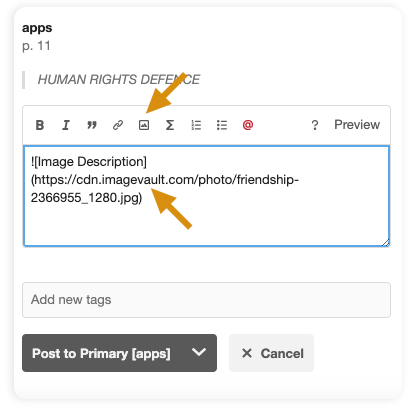
Visual Paradigm Annotator – Adding image description and pasting in the image link
-
- Finalize: Click Save to view your embedded image directly within the annotation stream.

Visual Paradigm Annotator – Embedded Image