
The @mentions feature is a great way to get someone’s attention. When you mention a teammate or classmate in a note, they will receive a notification so they know to come take a look.
How to Mention Someone
To tag a person in your note, follow these simple steps:
-
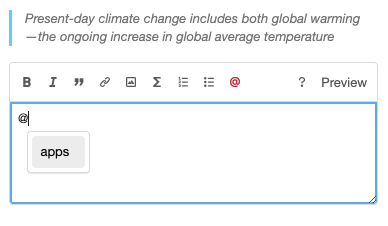
Type the “@” Symbol: In the Annotator text box, type the @ symbol followed by the person’s username (for example:
@jsmith).
-
Pick from the List: As you type, a list of names will pop up. These are usually people who are in your current group or who have recently written notes on the same page.
-
You can click their name with your mouse or use your arrow keys and hit Enter.
-
-
Save Your Note: Finish writing your thought and click Post.
Once you save the note, the username will turn into a blue link.
What Happens After You Tag Someone?
-
Instant Notification: The person you mentioned will get an email right away letting them know you’ve tagged them. They can click a button in that email to jump straight to the exact spot on the page where you left the note.
-
User Details: If you hover your mouse over a mentioned name, a small box will appear showing that person’s display name and when they joined Annotator.
-
View Their Work: If you click the link, it will take you to their profile page so you can see other public notes they’ve written.
Important Things to Know
-
Group Members Only: You can only mention people who are already members of the group you are currently using.
-
Typing Carefully: If you type a name that doesn’t exist or isn’t in your group, the tool will let you know that the user couldn’t be found.
-
Notifications: If you don’t want to receive emails when people tag you, you can change your “Notification” settings in your Annotator account.