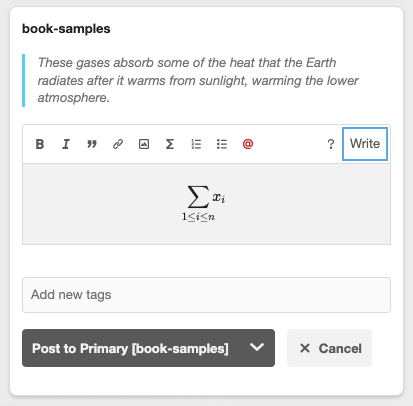
How to Add a Formula
To tell Annotator that you are writing a math formula, you just need to wrap your code in double dollar signs ($$).
-
The Rule: Put
$$at the very beginning and$$at the very end of your math code. -
Example: If you type
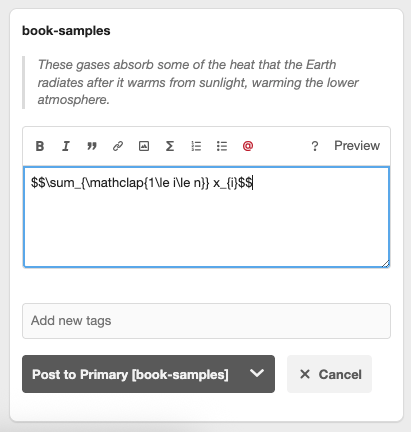
$$\sum_{i=1}^{n} x_{i}$$, it will turn into a clean, mathematical summation symbol.
Using the Toolbar
If you don’t want to type the dollar signs yourself, you can use the built-in shortcut:
-
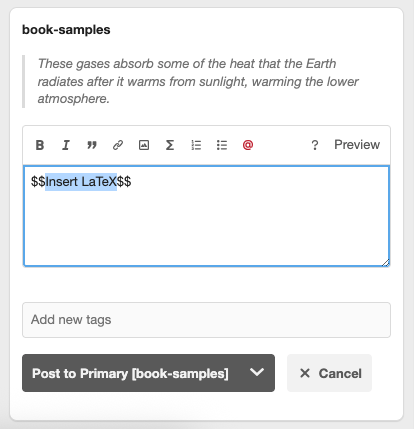
Click the Math Icon: In the editor toolbar, look for the ∑ (Sigma) icon.
-
Insert Your Code: Clicking this will automatically place the double dollar signs in your note for you. Just type your math symbols between them.
-
Check Your Work: Click the Preview link at the bottom of the editor to see exactly how the formula will look before you save it.