 Visual Paradigm Desktop |
  Visual Paradigm Online
AI-Powered Image Text Translation
When translating text from images, especially in multi-line documents, it’s common for OCR (Optical Character Recognition) technology to interpret lines or sections of text in ways that don’t align with the intended meaning. The Merge & Split Text Blocks feature allows you to refine your translations by either combining multiple separate text blocks into one or separating a combined block into smaller, more accurate parts. This level of control helps you ensure that the final translation is as accurate and readable as possible.
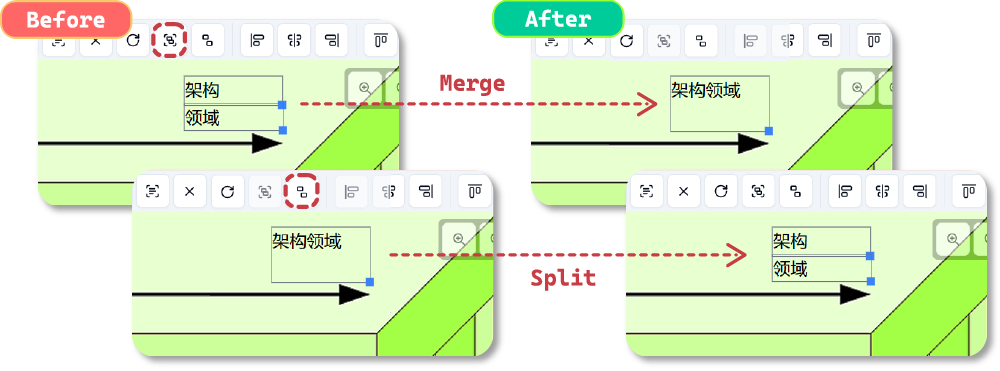
When translating documents, especially complex layouts with multiple lines or columns, OCR might not always break down the text correctly. Here’s why merging and splitting text blocks is important:
By adjusting the text blocks with the Merge & Split feature, you can improve translation accuracy and ensure that your text maintains its intended meaning.
Choose the image with the text you want to translate.
Click on the text blocks that should be combined. These could be blocks of text that belong together but were separated during OCR.
After selecting the blocks, click the Merge blocks button to combine them into one block. The merged text will now be treated as a single unit for translation.
Once merged, proceed with the translation, and the AI will process the combined text in the context of the full block.
After translation, you can make adjustments to the merged block as needed.
Choose the image containing text that needs to be split into separate blocks.
Click on the text block that contains multiple pieces of text that should be separated.
Click the Split merged blocks button to divide the block into smaller, more accurate sections.
Each newly created block will now be translated independently for improved accuracy.
After translation, you can fine-tune the separate text blocks for better readability.
Experience the ease of translating text in images with our cutting-edge AI technology. Start using this Beta feature now and see how it transforms the way you communicate across languages.
