
For a teacher, managing student information can be a manual and tedious process. When working with raw JSON data, updating scores, tracking which assignments are completed, or adding new students can be cumbersome. A single misplaced comma or bracket could corrupt the entire file, leading to frustration and lost time. You need a reliable, visual method to perform these updates quickly and without the risk of syntax errors.

[
{
"student_id": "ST1001",
"name": "Alice Johnson",
"assignment_name": "Essay 1: The Great Gatsby",
"score": 92,
"is_completed": true
},
{
"student_id": "ST1002",
"name": "Bob Williams",
"assignment_name": "Essay 1: The Great Gatsby",
"score": 85,
"is_completed": true
},
{
"student_id": "ST1003",
"name": "Catherine Davis",
"assignment_name": "Essay 1: The Great Gatsby",
"score": null,
"is_completed": false
},
{
"student_id": "ST1004",
"name": "David Smith",
"assignment_name": "Midterm Project",
"score": 78,
"is_completed": true
},
{
"student_id": "ST1005",
"name": "Eve Brown",
"assignment_name": "Midterm Project",
"score": null,
"is_completed": false
},
{
"student_id": "ST1006",
"name": "Frank Green",
"assignment_name": "Lab Report 1: Biology",
"score": 88,
"is_completed": true
},
{
"student_id": "ST1007",
"name": "Grace Hall",
"assignment_name": "Lab Report 1: Biology",
"score": 95,
"is_completed": true
},
{
"student_id": "ST1008",
"name": "Henry King",
"assignment_name": "History Presentation",
"score": null,
"is_completed": false
},
{
"student_id": "ST1009",
"name": "Ivy Lee",
"assignment_name": "History Presentation",
"score": 76,
"is_completed": true
},
{
"student_id": "ST1010",
"name": "Jack Miller",
"assignment_name": "History Presentation",
"score": 81,
"is_completed": true
}
]
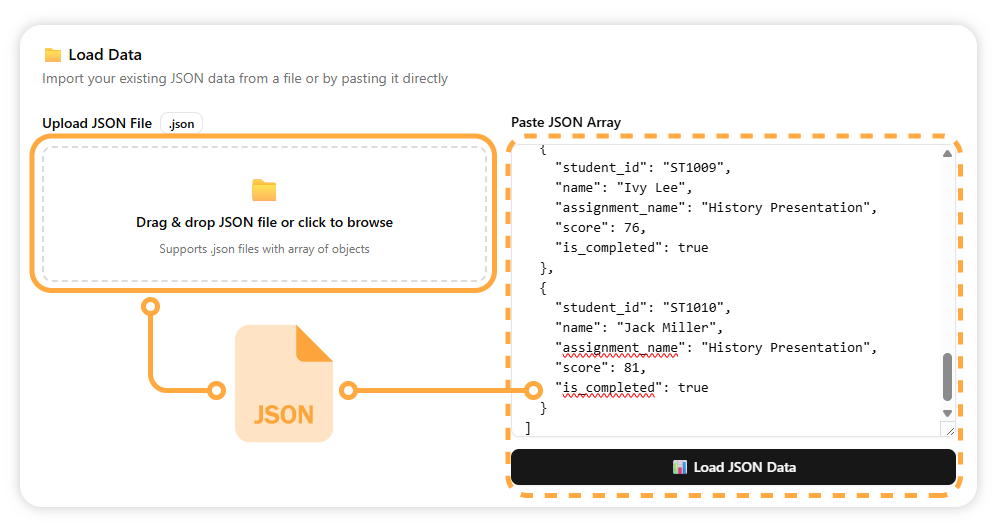
You would copy and paste the JSON array above into the app’s input field. The application would then convert the data into an easy-to-read, editable table.
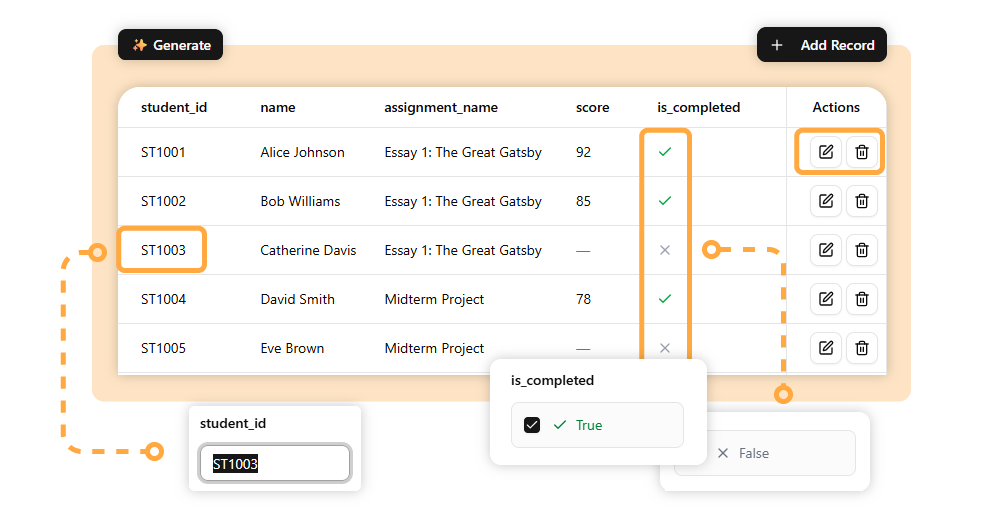
You can now make changes directly in the table. For example, you could update a student’s score from 85 to 90, or mark an assignment as completed by setting the is_completed column to True.
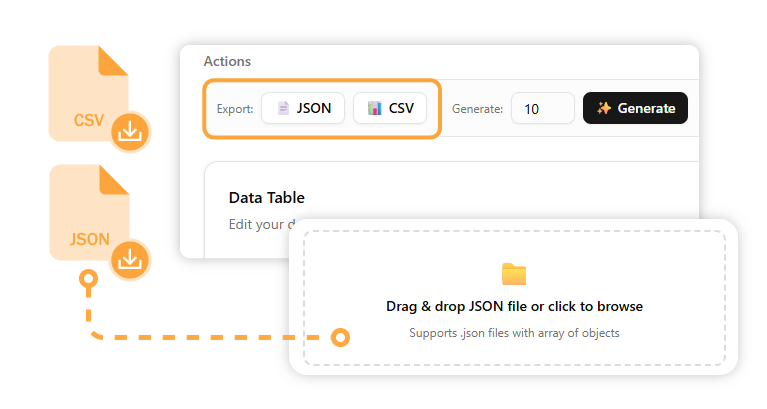
After making all your updates, you can export the data back into a clean JSON or CSV file, ready to be imported into another system or shared.
This visual interface provides a powerful way to interact with and update the gradebook data.

Easily update which assignments are finished and which are still pending by simply checking a box.
Modify a student’s numerical score directly in a visual interface, which is much faster than editing raw code.

The table view allows you to easily manage and review the records of multiple students at a glance.