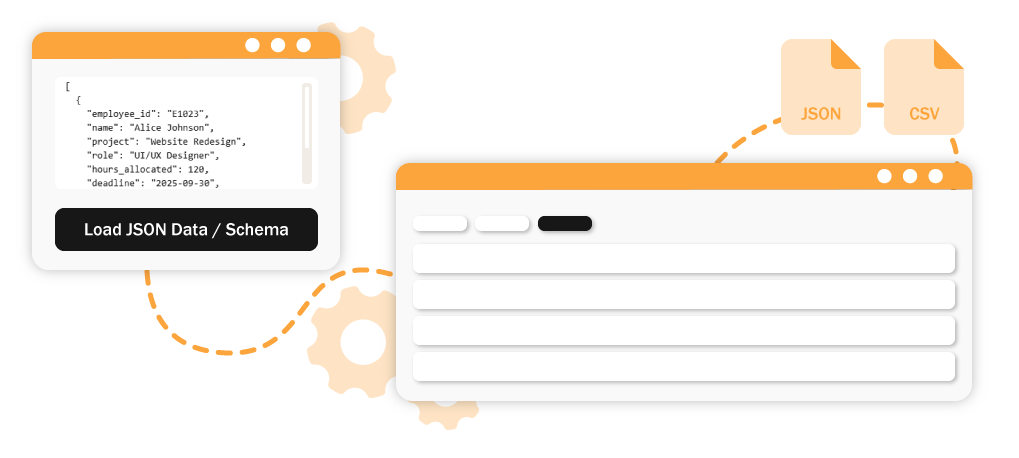
Welcome to a streamlined approach to data management! This guide will walk you through each powerful feature of the AI JSON CRUD Table Maker, demonstrating just how easy it is to transform raw JSON or a simple schema into a fully editable, AI-enhanced table. Get ready to effortlessly create, manage, and export your data like never before.
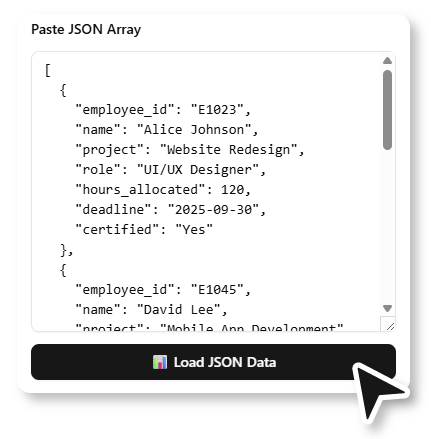
Begin by either pasting your existing JSON array directly into the editor, then press “Load JSON Data” button. Our tool will instantly transforms it into a fully editable table.
JSON Array Example
[
{
"employee_id": "E1023",
"name": "Alice Johnson",
"project": "Website Redesign",
"role": "UI/UX Designer",
"hours_allocated": 120,
"deadline": "2025-09-30",
"certified": "Yes"
},
{
"employee_id": "E1045",
"name": "David Lee",
"project": "Mobile App Development",
"role": "Backend Developer",
"hours_allocated": 150,
"deadline": "2025-10-15",
"certified": "No"
},
{
"employee_id": "E1038",
"name": "Sophie Martinez",
"project": "CRM Integration",
"role": "Project Manager",
"hours_allocated": 100,
"deadline": "2025-09-20",
"certified": "Yes"
},
{
"employee_id": "E1072",
"name": "Michael Chan",
"project": "Website Redesign",
"role": "Frontend Developer",
"hours_allocated": 130,
"deadline": "2025-09-30",
"certified": "No"
}
]
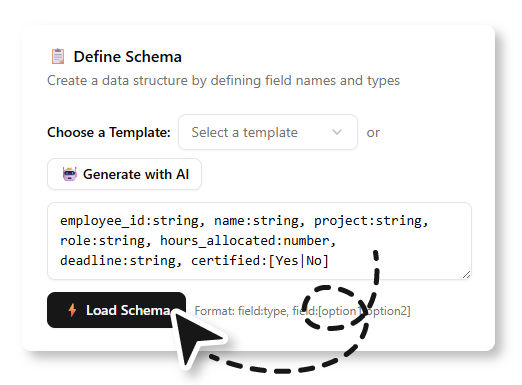
Define your table’s structure with a simple, human-readable schema. Our app intelligently recognizes data types and sets up your columns automatically.
employee_id:string, name:string, project:string, role:string, hours_allocated:number, deadline:string, certified:[Yes|No]
Based on the uploaded JSON, a table with fully populated data will be displayed. If you start from a schema without any values, an empty table will be generated. You can sort the rows by clicking a field name.
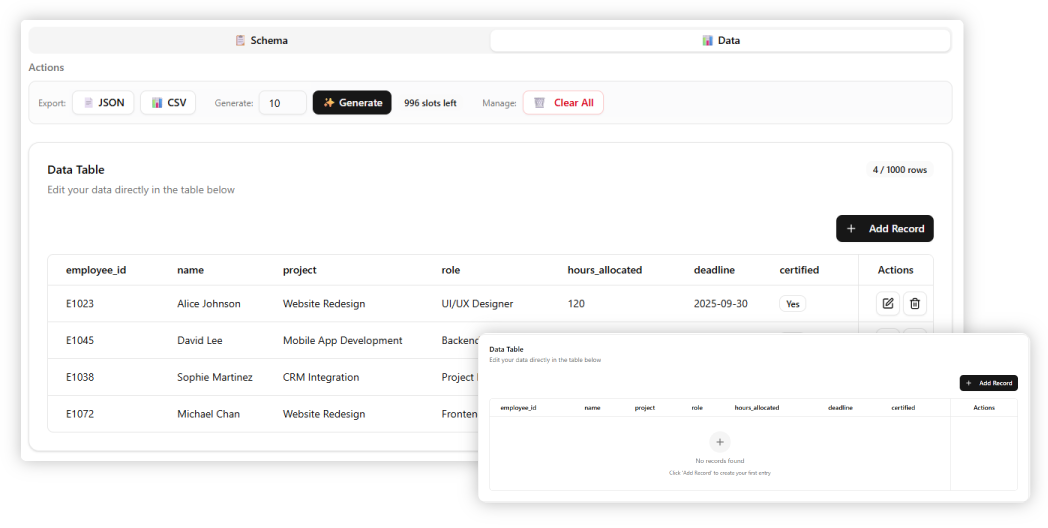
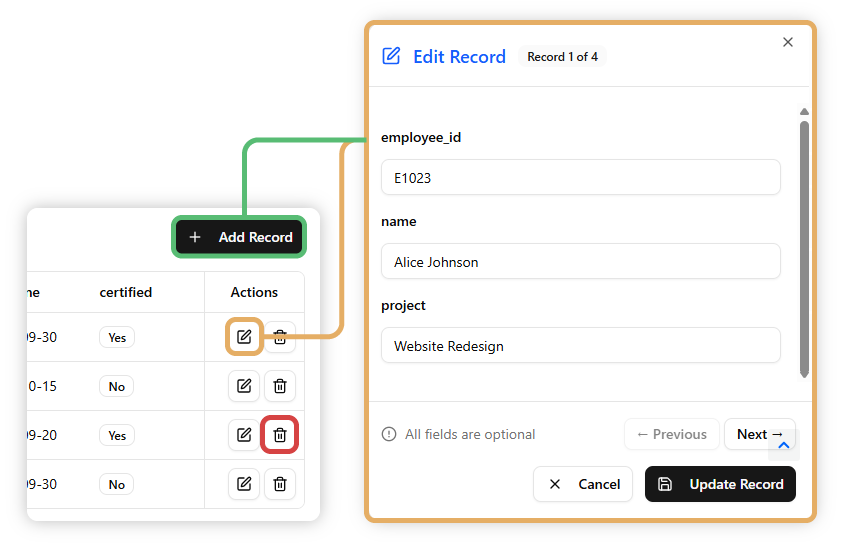
Enter the number of rows, then click the Generate button to populate the table with sample data. All generated rows can also be customized with the Edit Record button.
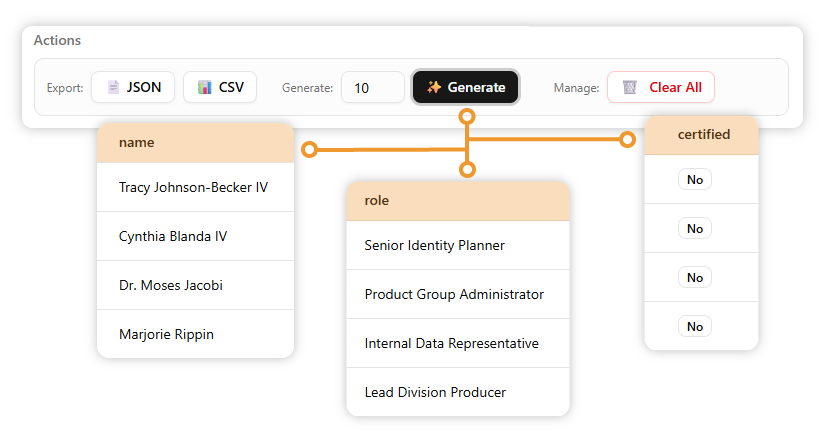
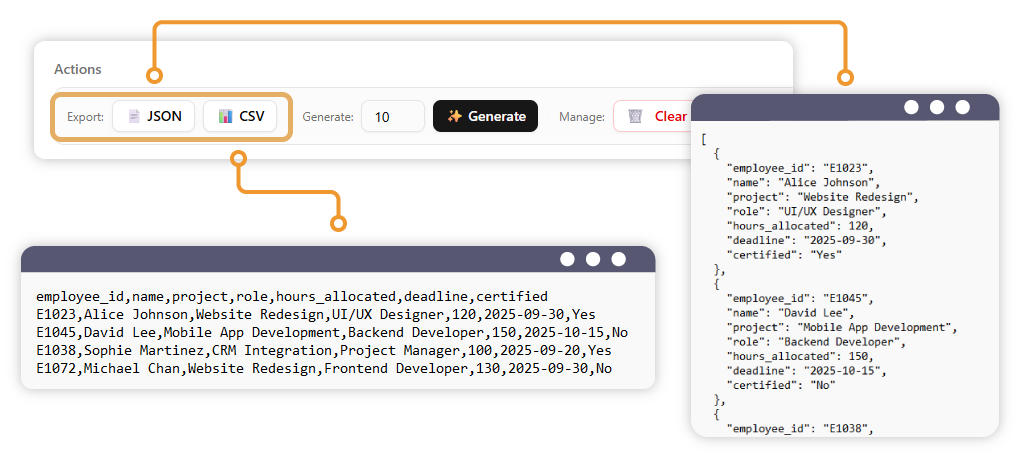
Once your data is perfect, easily export it in the format you need. Choose to download your table content as a clean JSON file, ready for use in your web applications, APIs, or databases.
Alternatively, export it as a CSV file for seamless integration with spreadsheets, data analysis tools, or other business applications. The flexibility ensures your data is always compatible.