
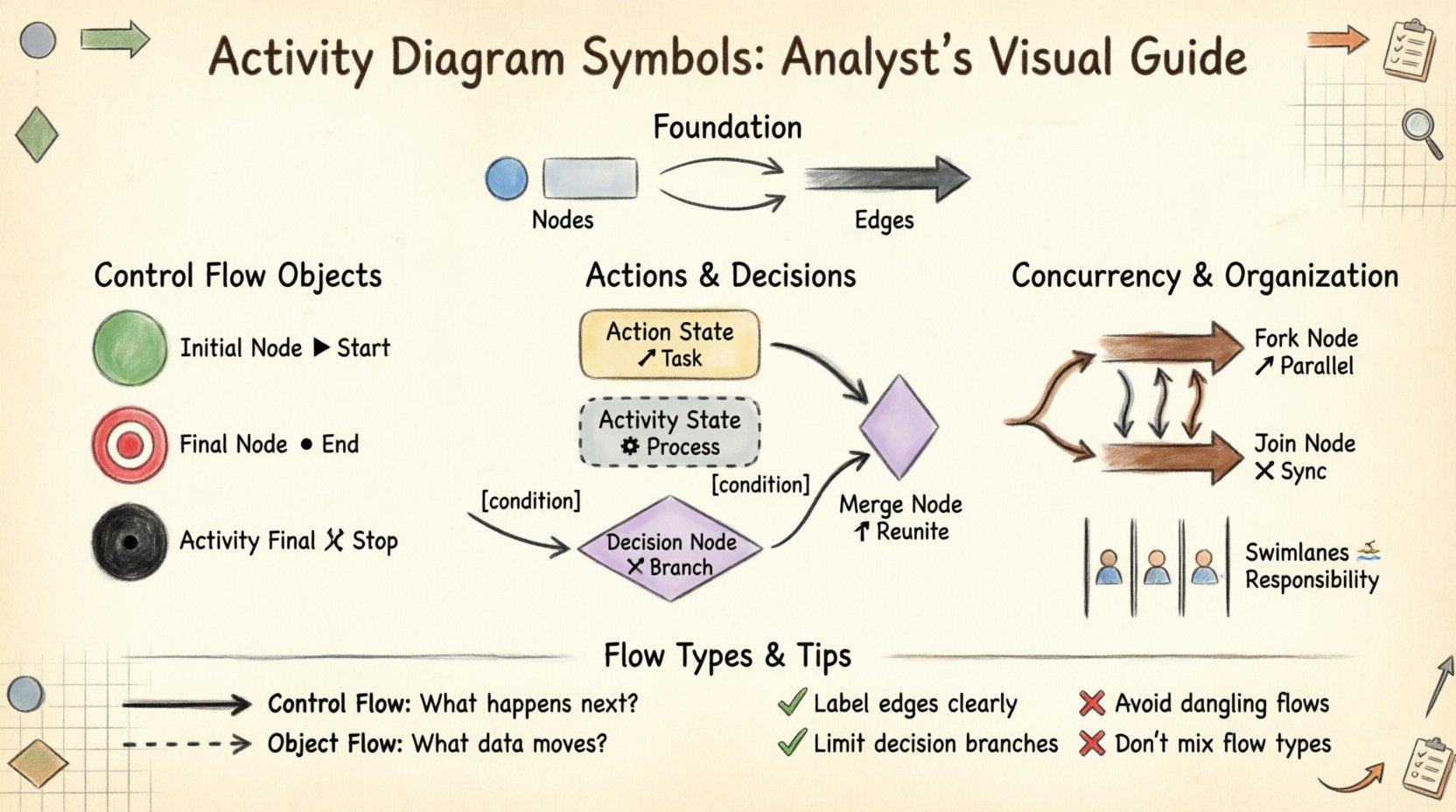
Visual modeling is a cornerstone of system analysis and business process design. When stakeholders discuss complex workflows, ambiguity often creeps in. Activity diagrams serve as the visual language to resolve this uncertainty. They map out the flow of control and data from start to finish. Understanding the specific symbols within this notation is not optional; it is essential for clarity.
This guide explores the fundamental building blocks of activity diagrams. We will examine how each symbol functions, where it applies, and how to combine them effectively. Whether you are designing a software system or optimizing a business operation, precision in notation ensures precision in execution.
Before dissecting specific icons, it is vital to understand the structural components of any activity diagram. These diagrams consist of two primary elements:
Combining these elements creates a directed graph. The direction is usually implied by arrows, guiding the reader from the beginning of the process to the end. Consistency in this structure prevents logical errors in the design phase.
Control flow objects manage the execution sequence. They determine when an action starts, when it finishes, and what happens next. These are the most common symbols found in any diagram.
The initial node marks the entry point of a process. It is a filled circle, often black or dark gray. There should only be one initial node per activity diagram to ensure a single point of entry.
The final node represents the termination of the activity. It is a filled circle within a larger circle. While the initial node is small, the final node is distinct to show completion.
Different from the final node, the activity final node signifies the termination of the entire activity, even if other flows are still running. It is a black circle with a white dot in the center.
These symbols represent the actual work being performed. They are the meat of the diagram.
An action state represents a single, indivisible step. It is depicted as a rounded rectangle. Unlike an activity, which can be decomposed into other sub-activities, an action is atomic.
An activity state is similar to an action state but can be nested. It represents a complex action that can be broken down into a separate sub-diagram. It looks like a rounded rectangle but implies further detail exists elsewhere.
Logic in a diagram relies on branching paths. Decision nodes and merge nodes handle these branches.
A decision node represents a point where the control flow splits based on a condition. It is a diamond shape. Each outgoing edge must have a guard condition, which is a boolean expression in square brackets (e.g., [Valid]).
A merge node combines multiple incoming flows into a single outgoing flow. It looks identical to a decision node (a diamond) but functions differently. It does not make a decision; it simply waits for any of the incoming paths to arrive.
Real-world processes often happen simultaneously. Concurrency is modeled using fork and join nodes.
A fork node splits a single control flow into multiple parallel flows. It is represented by a thick horizontal or vertical bar. It creates independent threads of execution.
A join node waits for all incoming parallel flows to complete before proceeding. It is also a thick bar, mirroring the fork. It synchronizes the concurrent paths.
One of the most common sources of confusion is the difference between control flow and object flow. Both use arrows, but they represent different concepts.
Understanding this distinction is critical for accurate system modeling. Control flow dictates logic; object flow dictates data integrity.
When processes involve multiple actors, swimlanes organize the diagram by responsibility. They divide the space into parallel tracks.
A swimlane is a visual partition that groups activities by the actor performing them. This could be a person, a department, or a system component.
Partitions are used to group activities within a larger activity. This is useful for breaking down complex systems into manageable modules.
Processes rarely go exactly as planned. Exception handling symbols allow you to model what happens when things go wrong.
Edges can be marked to indicate an exception. This is often represented by a specific label or a distinct line style on the outgoing edge from an action.
An interrupt flow allows one activity to stop another. It is represented by an edge with a specific symbol (often a lightning bolt or distinct arrow) targeting a specific action node.
To aid in quick reference, here is a summary of the core symbols and their functions.
| Symbol Name | Visual Shape | Function | Input/Output |
|---|---|---|---|
| Initial Node | Filled Circle | Start Process | 1 Out |
| Final Node | Circle in Circle | End Process | Any In |
| Decision Node | Diamond | Conditional Branch | 1 In, Multiple Out |
| Activity State | Rounded Rectangle | Perform Action | Any |
| Fork Node | Thick Bar | Parallel Split | 1 In, Multiple Out |
| Join Node | Thick Bar | Parallel Sync | Multiple In, 1 Out |
| Object Node | Rectangle with Lines | Data Storage | Any |
Creating a diagram is one thing; creating a useful one is another. Follow these guidelines to ensure your models communicate effectively.
Use the same notation style throughout the document. Do not mix different standards. If you use rounded rectangles for actions, do not switch to squares midway.
Avoid having too many outgoing edges from a single decision node. If a node has more than four branches, consider breaking it down or using nested conditions. This keeps the diagram readable.
Every edge leaving a decision node must have a label. Every edge entering a join node should ideally indicate what it represents. Ambiguity in labels leads to ambiguity in implementation.
Do not detail every single click in a user interface if you are modeling a business process. Conversely, do not summarize a complex calculation as a single step if the logic is critical. Find the right level of granularity for the audience.
Draw the diagram, then walk through it with the people who will execute the process. They will spot logic gaps that a designer might miss. A diagram is a contract; it must be understood by all parties.
Even experienced analysts make mistakes. Be wary of these common errors.
Object nodes represent data or physical items moving through the system. They are distinct from action nodes.
An object flow connects an object node to an action node. It shows that the action consumes or produces the object.
Object nodes can represent collections, such as a list of orders or a set of files. This is useful for modeling batch processes where multiple items are handled together.
Activity diagrams do not exist in isolation. They often work alongside other modeling techniques.
Use class diagrams to define the structure of the objects flowing through the activity diagram. The attributes in the class diagram correspond to the data in the object nodes.
While activity diagrams focus on flow, state machines focus on the status of an object. Use state machines for objects that have complex lifecycles, and activity diagrams for the processes that change those states.
Use case diagrams show the “what” from a user perspective. Activity diagrams show the “how” of the internal logic triggered by a use case.
Modeling is an act of communication. The symbols you choose are the vocabulary you use. If the vocabulary is imprecise, the message is lost. By mastering activity diagram symbols, you gain the ability to articulate complex systems with clarity.
Focus on the logic first. Ensure the flow makes sense before worrying about the aesthetics. Use the symbols to express constraints, decisions, and parallelism accurately. When your diagram is clear, your implementation will follow naturally.
Keep your diagrams updated as the system evolves. A static diagram becomes a liability. Treat the notation as a living document that reflects the current state of the process. This discipline ensures that the model remains a valuable asset rather than a relic.
Remember that the goal is not to create art, but to create understanding. The symbols are tools to bridge the gap between abstract requirements and concrete reality. Use them wisely.
 Real-World Case Study: Solving Complex Business Processes with Activity Diagrams
 Activity Diagram Troubleshooting: Fixing Logic Errors in Your Process Models
 Activity Diagram Comparison: Evaluating UML Standards for Different Project Types
 Activity Diagram Simplified: Turning Complex Workflows into Easy-to-Read Charts